VSeed, an elegant data composer, transforming complexity into simplicity.
!!!###!!!title=Getting Started with VMind——VisActor/VMind tutorial documents!!!###!!!!!!###!!!description=@VisActor/VChart provides a full-process solution from data to presentation, with "visualization narrative" and "intelligence" as its core competitiveness. The powerful generation ability of the large language model provides VChart with a natural language interaction interface, allowing us to directly call VChart's capabilities through natural language, and complete chart generation and editing simply, quickly, and with high quality.@VisActor/VMind is a chart intelligence module based on VChart and the large language model, providing capabilities such as intelligent chart recommendation, intelligent color matching, and dialog-style chart editing, which can greatly reduce the threshold for using VChart and improve the efficiency of users in creating data visualization works.In this tutorial, we will introduce how to use the VMind component to generate a simple chart.!!!###!!!
Quick Start
@VisActor/VChart provides a full-process solution from data to presentation, with "visualization narrative" and "intelligence" as its core competitiveness. The powerful generation ability of the large language model provides VChart with a natural language interaction interface, allowing us to directly call VChart's capabilities through natural language, and complete chart generation and editing simply, quickly, and with high quality.
@VisActor/VMind is a chart intelligence module based on VChart and the large language model, providing capabilities such as intelligent chart recommendation, intelligent color matching, and dialog-style chart editing, which can greatly reduce the threshold for using VChart and improve the efficiency of users in creating data visualization works.
In this tutorial, we will introduce how to use the VMind component to generate a simple chart.
Get VMind
Use NPM Package
First, you need to install VMind in the project root directory using the following command
# Install with npmnpm install @visactor/vmind
# Install with yarnyarn add @visactor/vmind
VMind needs to be used in conjunction with VChart. In order to draw charts, you also need to introduce VChart into the project. For specific tutorials, please see Quick Start
Introduce VMind
Import through NPM Package
Use import at the top of the JavaScript file to introduce VMind
import VMind from'@visactor/vmind';
Initialize VMind Instance
The complete type definition of options is as follows:
First, we need to initialize a VMind instance and use it to complete subsequent operations. VMind currently supports all mainstream models, including OpenAI GPT series, Byte Doubao series, and DeepSeek models. As long as the corresponding model API interface is provided, all models can be directly invoked.
Use the following code to initialize a VMind instance:
import VMind, { Model } from '@visactor/vmind'
const vmind = newVMind({
model: Model.GPT4o, //usegpt-4o modelheaders: { //specifytheheaderwhencallingthe LLM service Authorization: `Bearer ${OPENAI_API_KEY}` // Your OPENAI_API_KEY
}
})
When initializing the VMind instance, you can specify the url of the LLM service, the type of model, custom model request methods and other parameters. For detailed tutorials, please go to the Create VMind Instance chapter
Chart Intelligent Generation Module
In traditional chart generation steps, in order to make a complete chart, you need to complete the following steps:
First prepare a set of data you want to display
Specify a chart type (chart recommendation)
Describe how the fields in the data are mapped to the visual channels of the chart (field mapping)
Modify the style of each element and set the chart palette (intelligent color matching)
And to generate a chart with VMind, you only need to:
Provide a set of data you want to display (csv or JSON format)
Describe your requirements for the chart, such as what information you want to display in the chart, what style of color matching to use, etc.
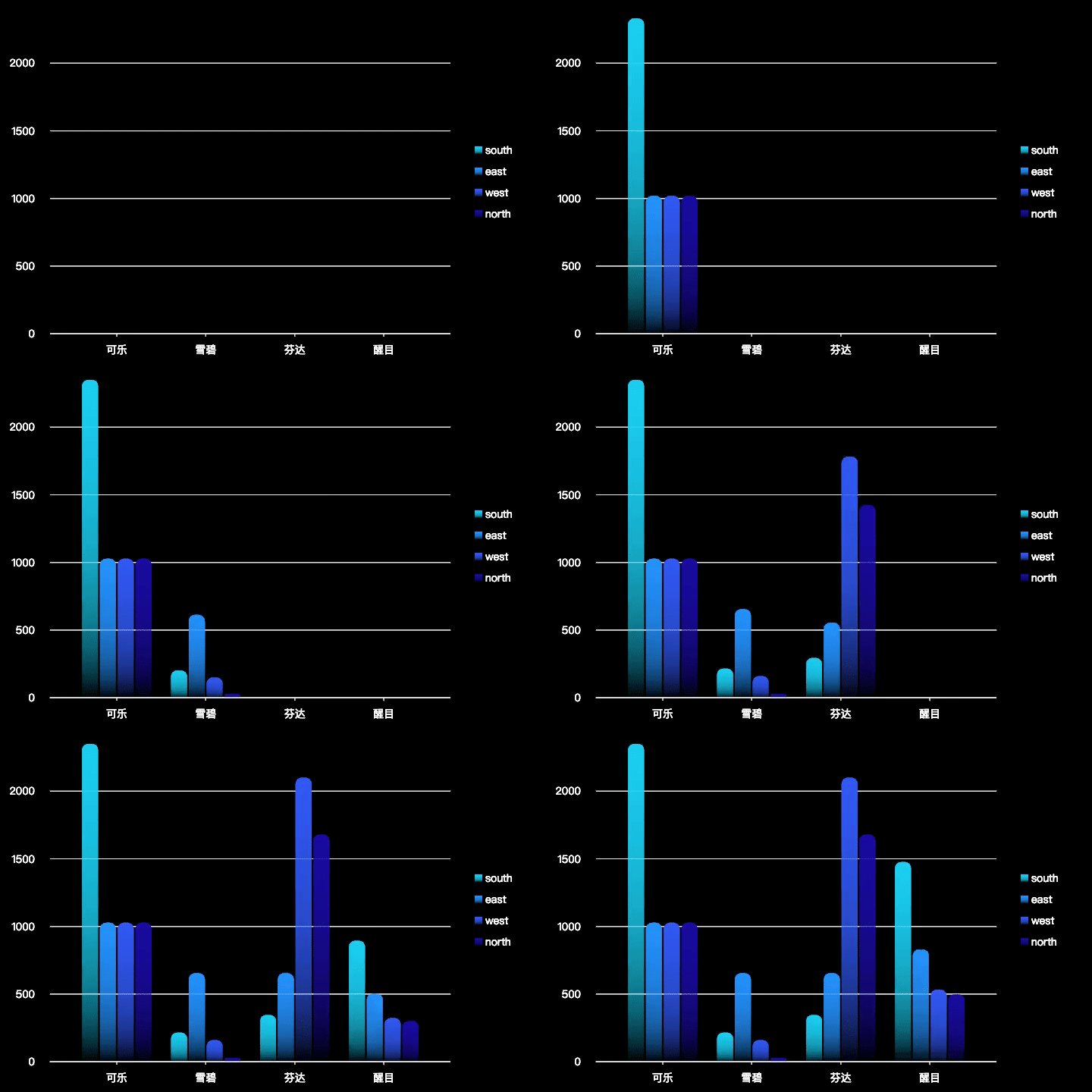
For example, we want to use the following product sales data to show the sales of various products in different regions:
Product Name
region
Sales
Cola
south
2350
Cola
east
1027
Cola
west
1027
Cola
north
1027
Sprite
south
215
Sprite
east
654
Sprite
west
159
Sprite
north
28
Fanta
south
345
Fanta
east
654
Fanta
west
2100
Fanta
north
1679
Red Bull
south
1476
Red Bull
east
830
Red Bull
west
532
Red Bull
north
498
To use data in CSV or JSON formats in subsequent processes, it's necessary to call data processing methods to convert CSV data to a JSON format dataset and obtain fieldInfo, or directly obtain fieldInfo from JSON formatted data. VMind provides rule-based methods to get this information. These methods will not transfer detailed data to a larger model.
We can call parseCSVData to obtain a JSON format dataset and fieldInfo from CSV data for intelligent chart generation and data aggregation:
const csvData = `Product Name,region,Sales
Cola,south,2350Cola,east,1027Cola,west,1027Cola,north,1027Sprite,south,215Sprite,east,654Sprite,west,159Sprite,north,28Fanta,south,345Fanta,east,654Fanta,west,2100Fanta,north,1679Red Bull,south,1476Red Bull,east,830Red Bull,west,532Red Bull,north,498`;
//Pass in the csv string to get fieldInfo and dataset for chart generation
const { fieldInfo, dataset } = vmind.parseCSVData(csvData);
If you already have JSON formatted data, we can also call the getFieldInfo method to obtain fieldInfo from the data:
The content we want to show is "the changes in the sales rankings of various car brands". Call the generateChart method and pass the data and display content description directly to VMind:
const userPrompt='show me the changes in sales rankings of various car brand'//Call the chart generation interface to get spec and chart animation durationconst { spec, time } = await vmind.generateChart(userPrompt, fieldInfo, dataset);
Next, we can use VChart to draw the generated chart.
Before drawing, we need to prepare a DOM container with height and width for VChart.
<body><!-- Prepare a DOM with size (width and height) for vchart, of course you can also specify it in the spec configuration --><divid="chart"style="width: 600px;height:400px;"></div></body>
Next, we create a VChart instance, pass in the spec just generated and the ID of the DOM container:
We can also make more requests for the chart, for example:
const userPrompt = 'Help me show the sales of various products in different regions, use line charts, and use region as the x-axis';
const { spec, time } = await vmind.generateChart(userPrompt, fieldInfo, dataset);
The generated chart is as follows:
Export GIF and Video
VMind supports exporting the generated chart as a GIF animation and video, which can be shared anytime and anywhere.
In order to implement the video export function, you need to additionally include VChart, FFMPEG, canvas related content in your project and pass them as objects to VMind. The following will show how to get the ObjectURL of the chart GIF and video:
First, install VChart, FFMPEG, and canvas-related content:
Ensure that the vrender-core version matches the vchart dependency version, for example: "@visactor/vchart": "1.12.7" should correspond to "@visactor/vrender-core": "0.20.7".
Usage is as follows:
import VChart from"@visactor/vchart";
import { ManualTicker, defaultTimeline } from"@visactor/vrender-core";
import { createFFmpeg, fetchFile } from'@ffmpeg/ffmpeg/dist/ffmpeg.min.js'import { createCanvas } from"canvas";
import VMind from"@visactor/vmind";
// Initialize vmind and ffmpegconst vmind = new VMind({});
const ffmpeg = createFFmpeg({
log: true,
});
const loadFFmpeg = async () => {
if (!ffmpeg.isLoaded()) {
await ffmpeg.load();
}
};
// Ensure ffmpeg is loaded before using the export featureawait loadFFmpeg();
// Export video// Pass in the chart spec, video duration, and necessary parameters for video creation, and return the ObjectURLconst videoSrc = await vmind.exportVideo(spec, time, {
VChart,
FFmpeg: ffmpeg,
fetchFile,
ManualTicker,
defaultTimeline,
createCanvas,
});
// Export GIF imageconst gifSrc = await vmind.exportGIF(spec, time, {
VChart,
FFmpeg: ffmpeg,
fetchFile,
ManualTicker,
defaultTimeline,
createCanvas
});
Once you get the ObjectURL of the chart, we can save it as a file. Take saving the video file as an example:
//Create dom element to implement file downloadconst a = document.createElement('a');
a.href = videoSrc;
a.download = `${filename}.mp4`; //Set the saved file namea.dispatchEvent(new MouseEvent('click')); //Save file
Summary
This chapter introduces how to install and use VMind for chart generation, and demonstrates how to save the generated chart as a GIF and video. VMind currently supports bar charts, pie charts, line charts, scatter plots, word clouds, dynamic bar charts, and more chart types are under development. VMind can recommend suitable chart types based on user data and display intentions, map fields to suitable visual channels, and automatically generate palettes that meet user needs, reducing the threshold for users to perform data visualization and helping you easily complete data narratives.