During the rendering process of the table, cells are generated, but unlike the native DOM, Canvas cells cannot be expanded by content. We must know the row height and column width of the content in order to dynamically adjust the width and height of the cells based on the row height and column width.
Solution
Suppose we have a piece of text \r
We want to calculate its width and height through Canvas, the usual operation is like this: \r
However, this method can only obtain the most basic width and height, but there are many other influencing factors within the VTable, such as wrapping operations, which will affect the final calculation of width and height. So how to accurately calculate row height and column width for different configurations becomes a challenge. Next, let's see how the VTable operates internally. \r
Bounding Box
Before introducing the specific calculation logic, it is necessary to first introduce the concept of bounding boxes. \r
In the field of computer and graphic vision, a bounding box is a container that encloses a group of objects. By wrapping complex objects in simple containers, it is possible to approximate the shape of complex geometries with simple bounding boxes, which can improve computational efficiency. Additionally, simple objects are generally easier to check for overlap with each other. \r
In VRender, AABBBounds is implemented. AABBBounds is a relatively simple type of bounding box with poor tightness. Within VTable, each basic primitive maintains its own AABBBounds, which can be used to calculate width and height.
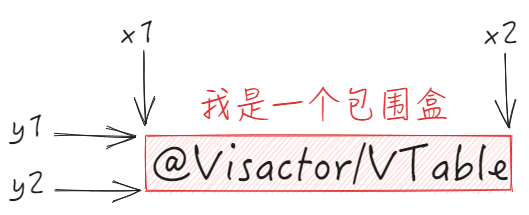
Record the coordinates of the four vertices of the current bounding box in the AABBBounds instance. With the concept of a bounding box, it becomes much more convenient to implement functions such as width and height calculation, rotation, and cropping. \r
For example, if we want to get the height of a piece of text, we can directly calculate it using this.y2 - this.y1.
// VisActor/VUtil/blob/main/packages/vutils/src/data-structure/bounds.ts
export class Bounds implements IBounds {
  // 默认初始值是Number.MAX_VALUE
  x1: number;
  y1: number;
  x2: number;
  y2: number;

  constructor(bounds?: Bounds) {
    if (bounds) {
      this.setValue(bounds.x1, bounds.y1, bounds.x2, bounds.y2);
    } else {
      this.clear();
    }
  }
  // ...
  rotate(angle: number = 0, x: number = 0, y: number = 0) {
    const p = this.rotatedPoints(angle, x, y);
    return this.clear().add(p[0], p[1]).add(p[2], p[3]).add(p[4], p[5]).add(p[6], p[7]);
  }
  width(): number {
    if (this.empty()) {
      return 0;
    }
    return this.x2 - this.x1;
  }
  height(): number {
    if (this.empty()) {
      return 0;
    }
    return this.y2 - this.y1;
  }
Let's first look at the calculation of column width \r
Column Width Calculation Mode
Table column width calculation modes, there are three configurations below:
'standard': Use the width attribute specified width as the column width.
'adaptive': Use the width of the table container to allocate column widths.
'autoWidth': Automatically calculate the column width based on the content in the column header and body cells, ignoring the width attribute setting.
Calculation Process
Impact in Different Calculation Modes
To calculate the column width of an entire column, it is not enough to obtain the column width of a single row. Instead, you need to find the maximum column width in the entire column (this has different effects under different calculation modes).
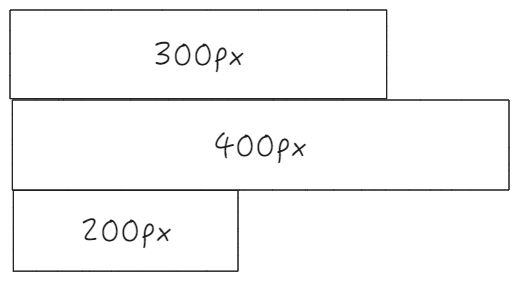
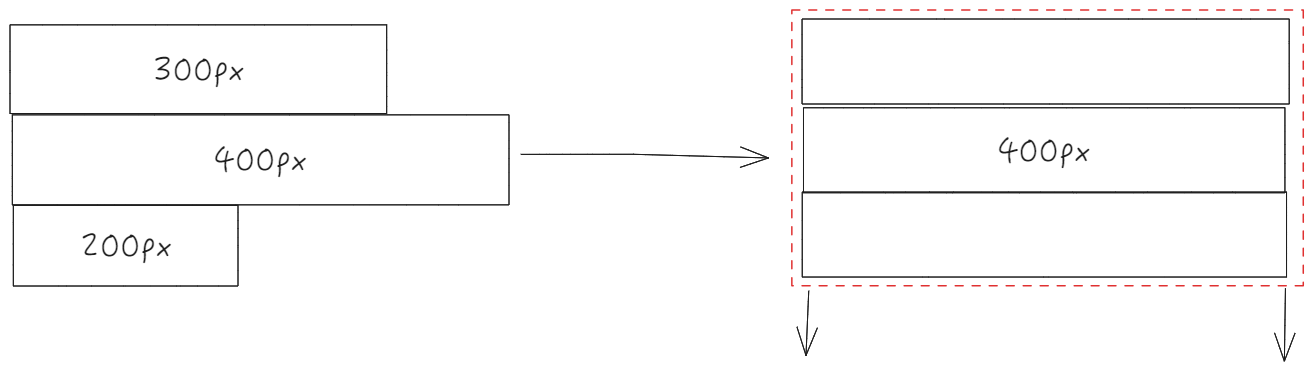
Assuming there are the following three cells, the content length of the three cells is not the same, you cannot randomly take the width of one cell as the column width for this column, there must be a definite width. \r
In VTable, different calculation modes for column widths have different logic for adjusting column widths: \r
standard
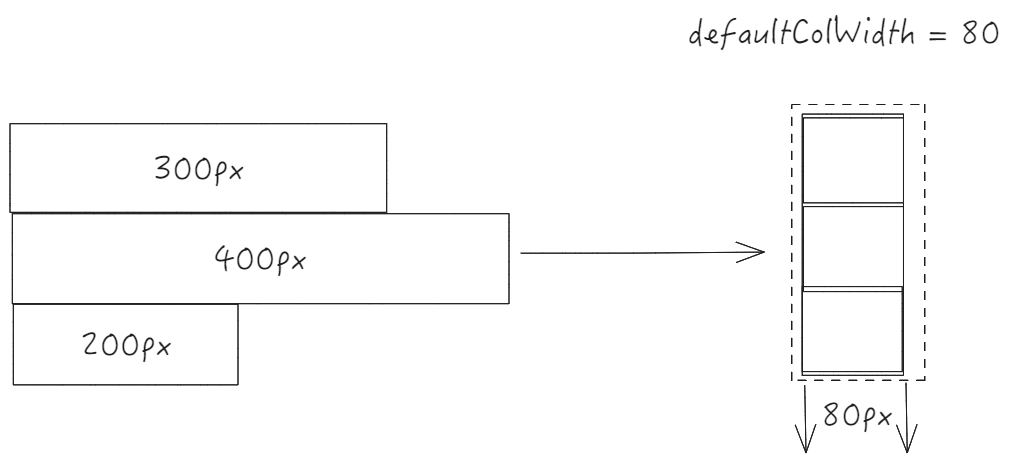
Under standard width, all widths will follow the default configuration; \r
For example, the column width of the three cells above will be uniformly adjusted to 80px; \r
autoWidth
In autoWidth mode, the width of the entire column will be adjusted based on the longest column among all columns. It should be noted that the maximum column width cannot exceed limitMaxAutoWidth;
adaptive
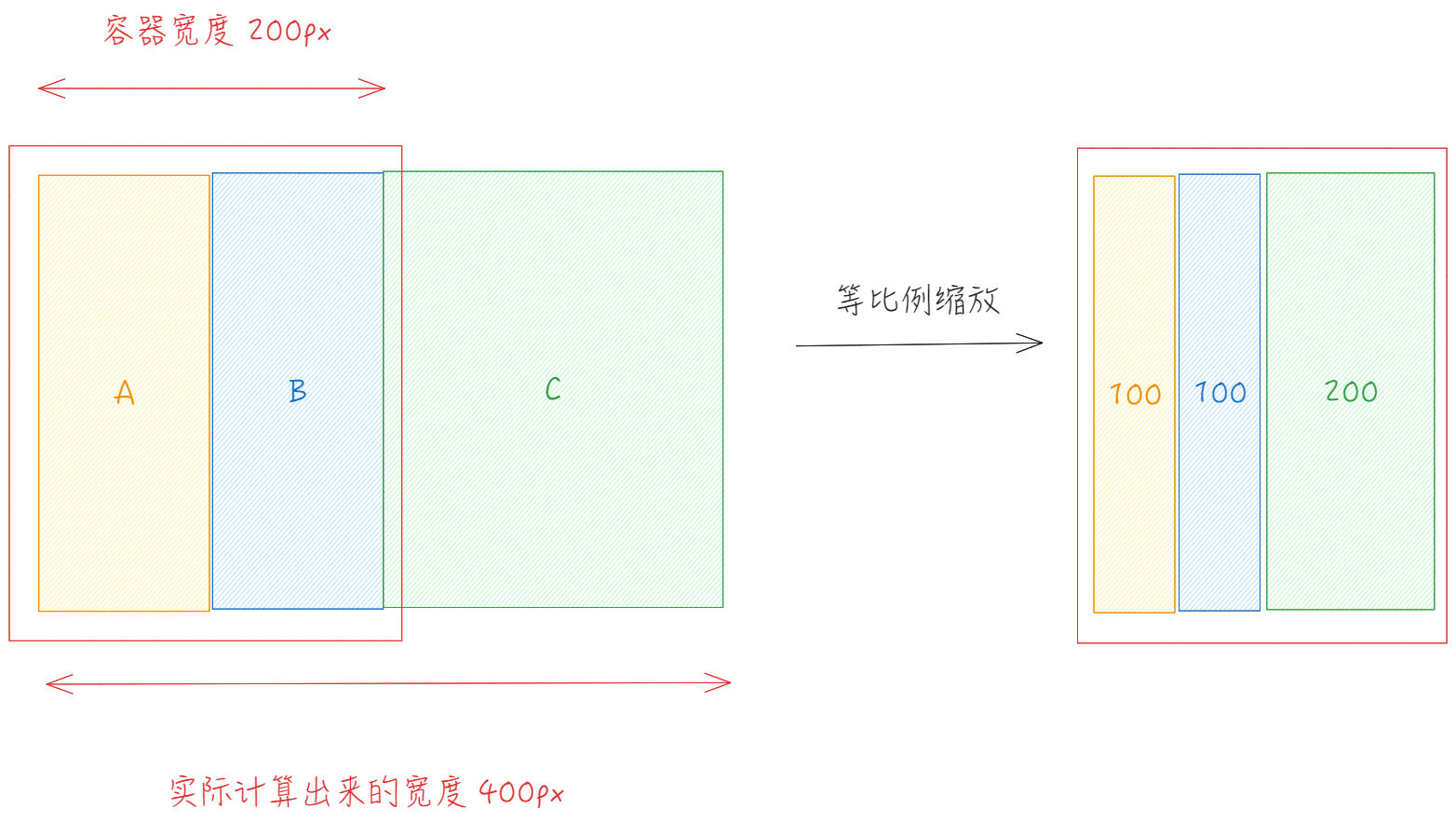
In the container width adaptation mode, the column width is first calculated based on autoWidth, and then the column width is proportionally scaled according to the ratio of the container column width to the actual column width. \r
Multi-column Width Calculation
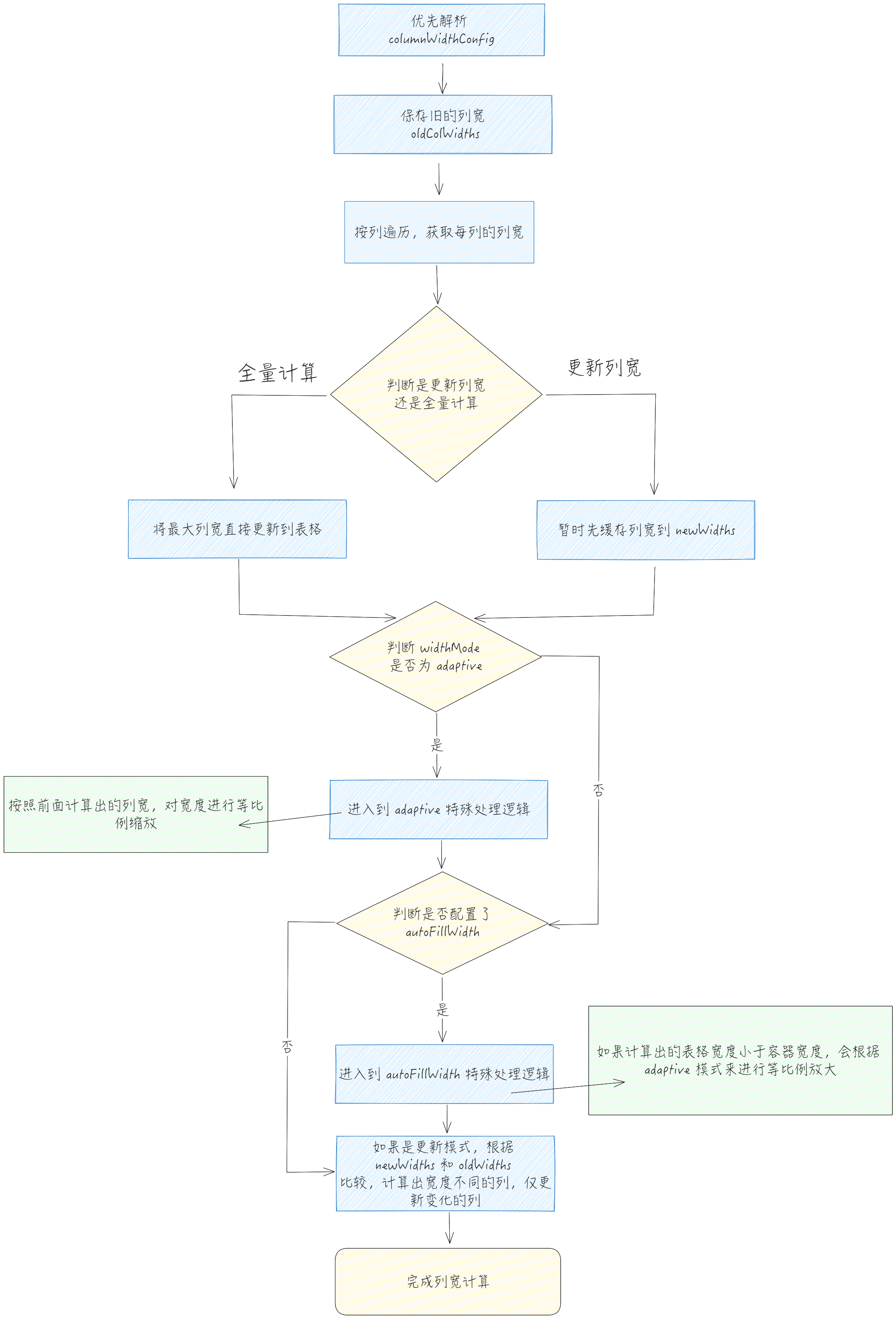
Here is the overall flowchart with multiple column widths
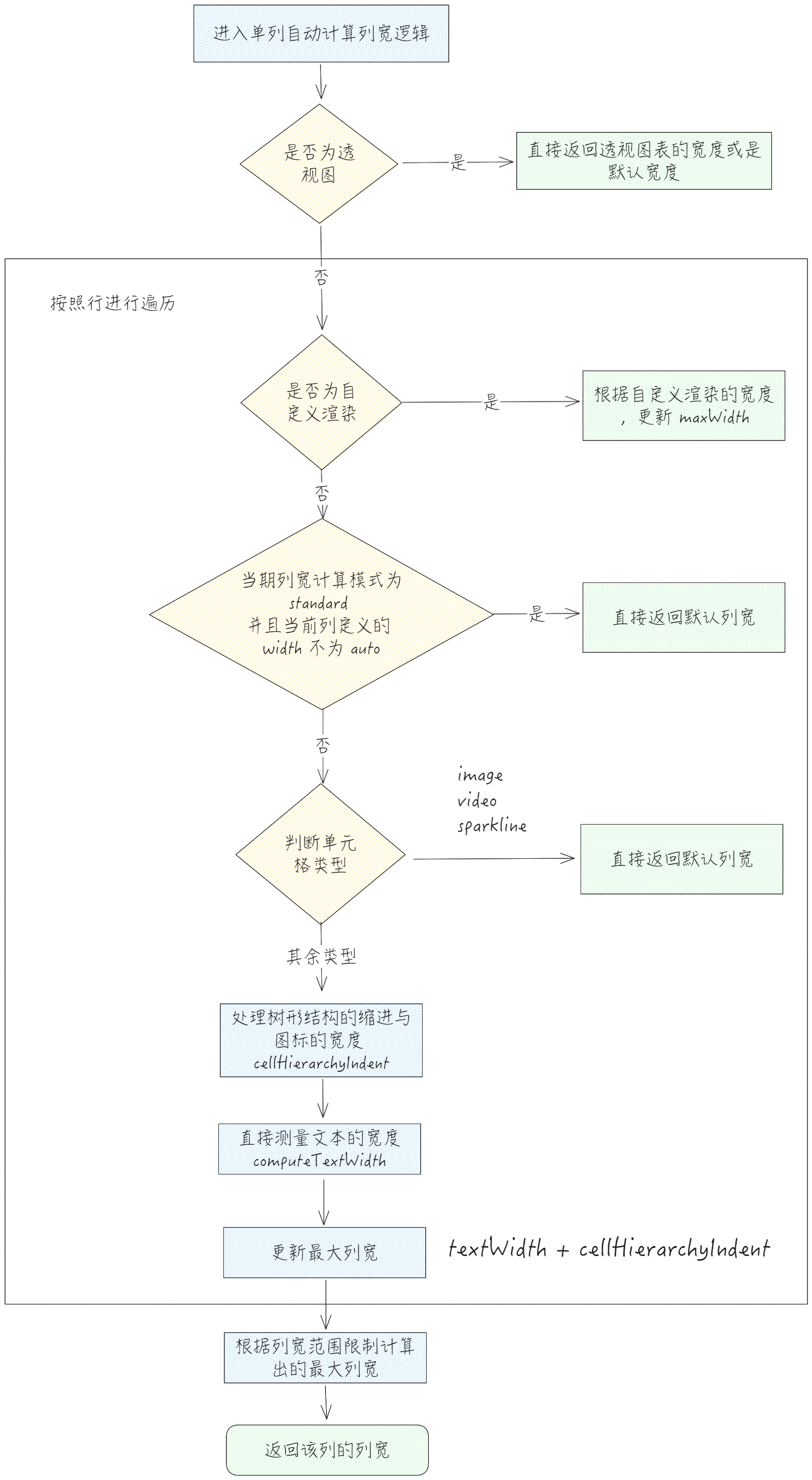
Internally, it will traverse by column and call computeColWidth for each column to calculate the width of the column separately.
Single Column Width Calculation
computeColWidth
Pre-process
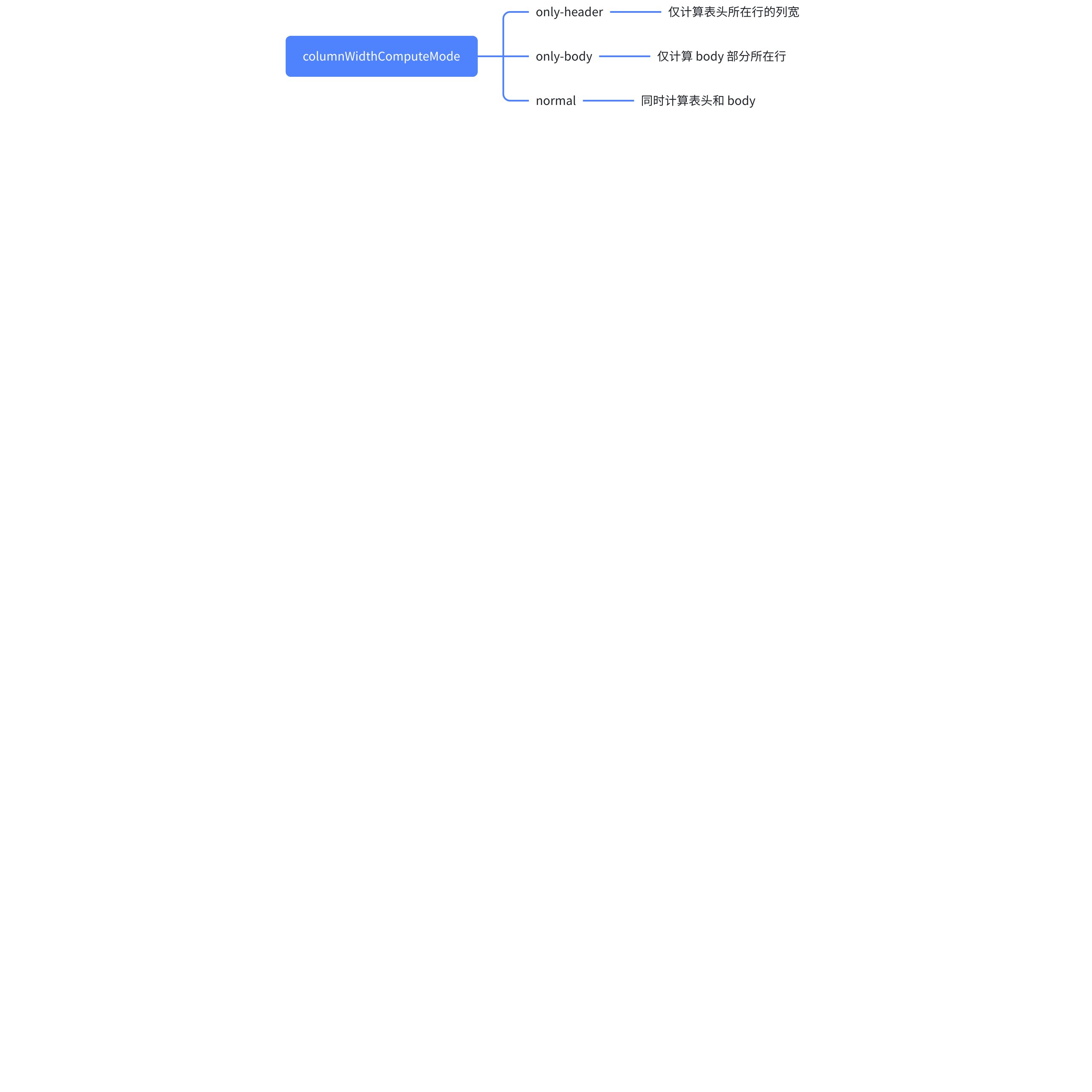
In the process of obtaining the overall column width, each column is traversed to get the width of that column. Depending on the columnWidthComputeMode, different rows are involved in calculating the width of the column.
In the previous process, there will be logic involving automatic calculation of column width. The core logic for calculating column width is located in computeAutoColWidth.
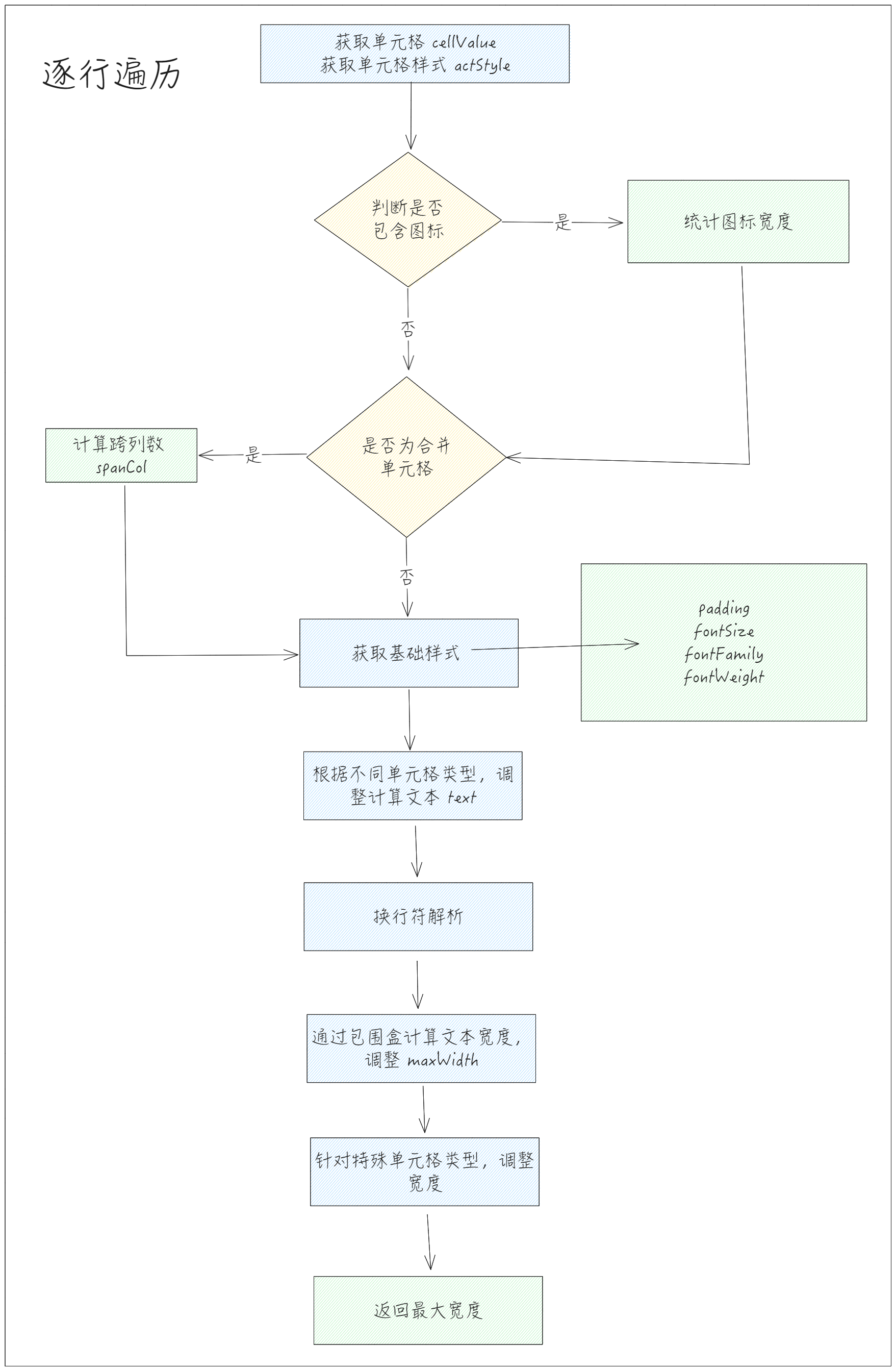
In the previous process of calculating width, there will be situations involving measuring text width. Let's analyze the process of measuring single text width below. \r
For merged cells, a text will be divided by multiple cells, so after calculating the width, it needs to be divided by the number of columns spanned by the merged cells to calculate the actual width occupied by the current cell. \r
Calculation Formulas for Different Types of Cell Widths
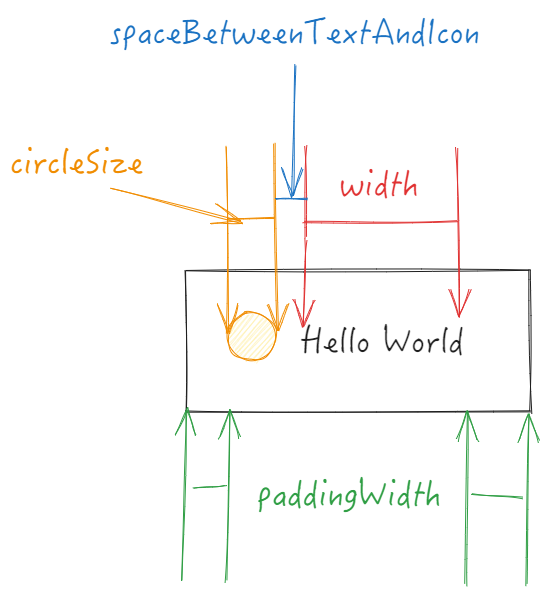
After calculating the basic cell width, certain special cells need to be readjusted. Take the radio button as an example: \r
Radio button calculation formula: \r
Column Width Calculation Overall Process
Recalculate
Trigger Timing
There are multiple trigger points for recalculation, including: \r
Expand/Collapse Header
Change cell value
Add rows and columns
Click to sort
Source Code & Implementation
Let's take recalculateColWidths, which is triggered when a new row is added, as an example to explain the process of recalculating column widths:
It can be seen that VTable gradually updates all the columns, where the fourth parameter of all computeColsWidth is true. Let's see what VTable does when update is true.\r
Source code
// packages\vtable\src\scenegraph\layout\compute-col-width.ts
function computeColsWidth() {
// ...
  if (update) {
    for (let col = 0; col < table.colCount; col++) {
      const newColWidth = newWidths[col] ?? table.getColWidth(col) ?? table.getColWidth(col);
      if (newColWidth !== oldColWidths[col]) {
        table._setColWidth(col, newColWidth, false, true);
      }
    }
    table.stateManager.checkFrozen();
    for (let col = 0; col < table.colCount; col++) {
      const newColWidth = table.getColWidth(col);
      if (newColWidth !== oldColWidths[col]) {
        table.scenegraph.updateColWidth(col, newColWidth - oldColWidths[col], true, true);
      }
    }
    table.scenegraph.updateContainer(true);
  }
  //...
 }
It can be seen that the internal process will judge column by column, comparing the newly calculated width with the old width. Only when the width changes will it readjust the table width and update the scene tree elements. Then update the scene tree container. \r
Line Height Calculation
Next, let's look at the logic for calculating line height. \r
Altitude Calculation Mode
There are three modes for calculating line height: 'standard' (standard mode), 'adaptive' (adaptive container height mode), or 'autoHeight' (automatic line height mode), with 'standard' as the default.
'standard': Use defaultRowHeight and defaultHeaderRowHeight as row height;
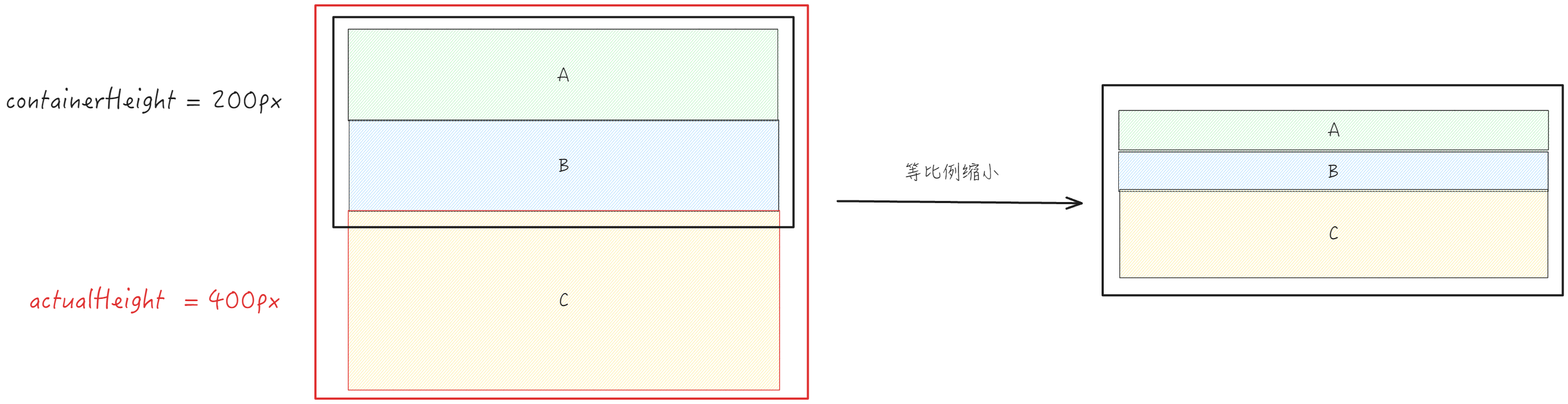
'adaptive': Scale proportionally based on the calculated height and the ratio of the container height to the calculated height;
'autoHeight': Automatically calculate row height based on content, calculated based on fontSize and lineHeight (text line height), as well as padding. Related setting option autoWrapText for automatic line wrapping can calculate row height based on the content of the wrapped multi-line text;
Note that when autoFillHeight = true is configured, the enlargement according to the ratio will only occur if the row height does not exceed the container height.
### Core Processing
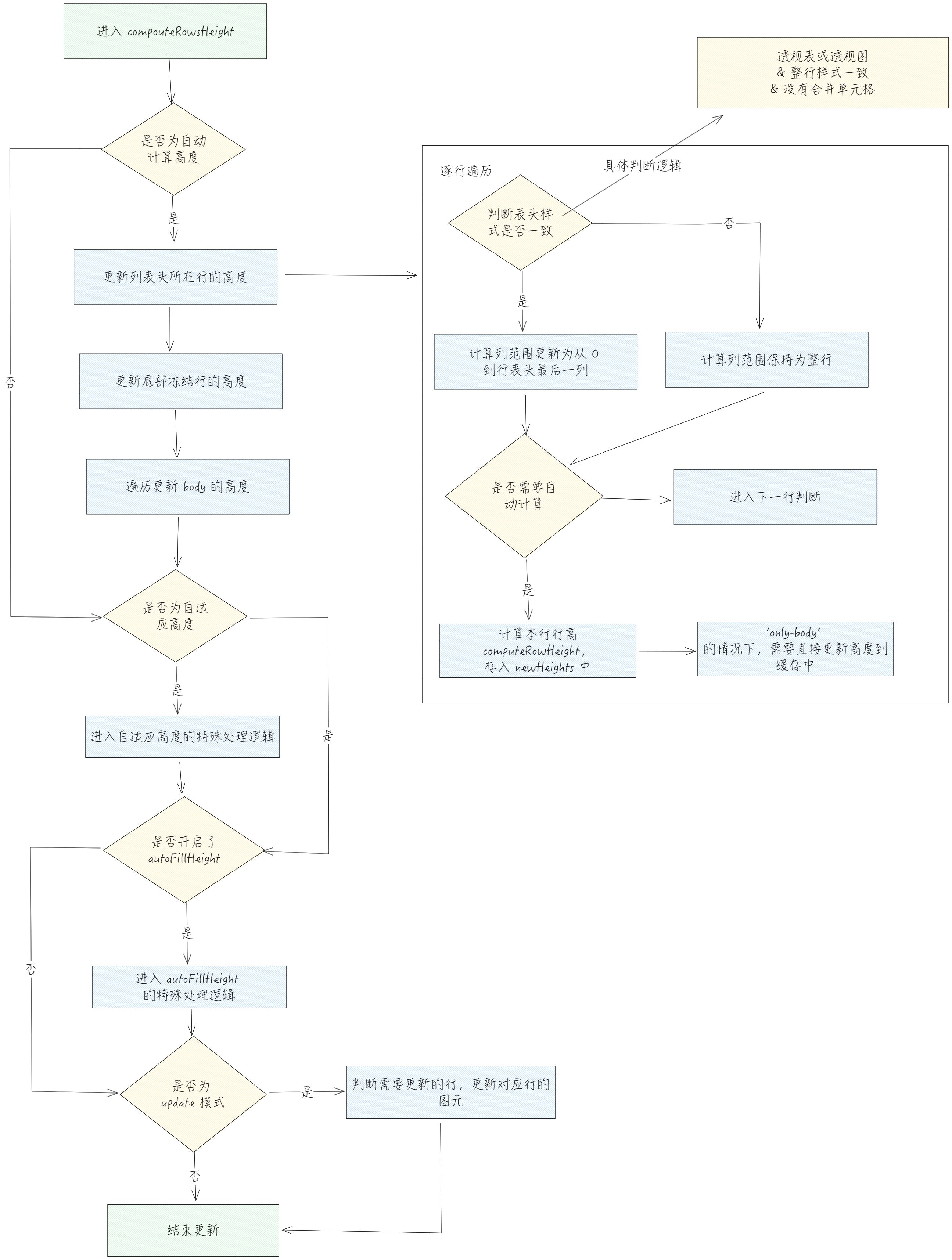
Overall Process
computeRowsHeight
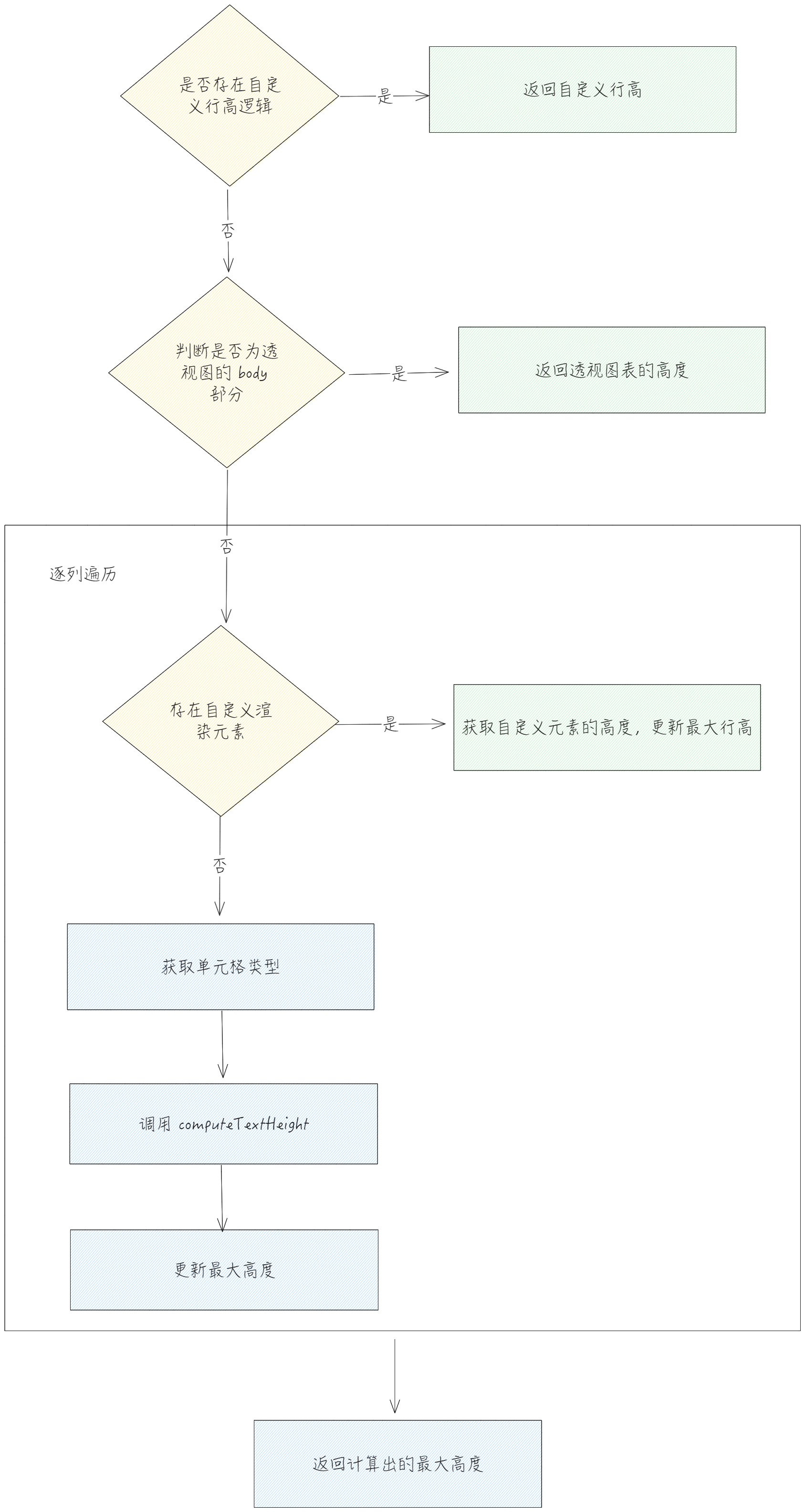
The logic calculated for each line individually is mainly located in computeRowHeight, which calculates the row height based on the configuration information.
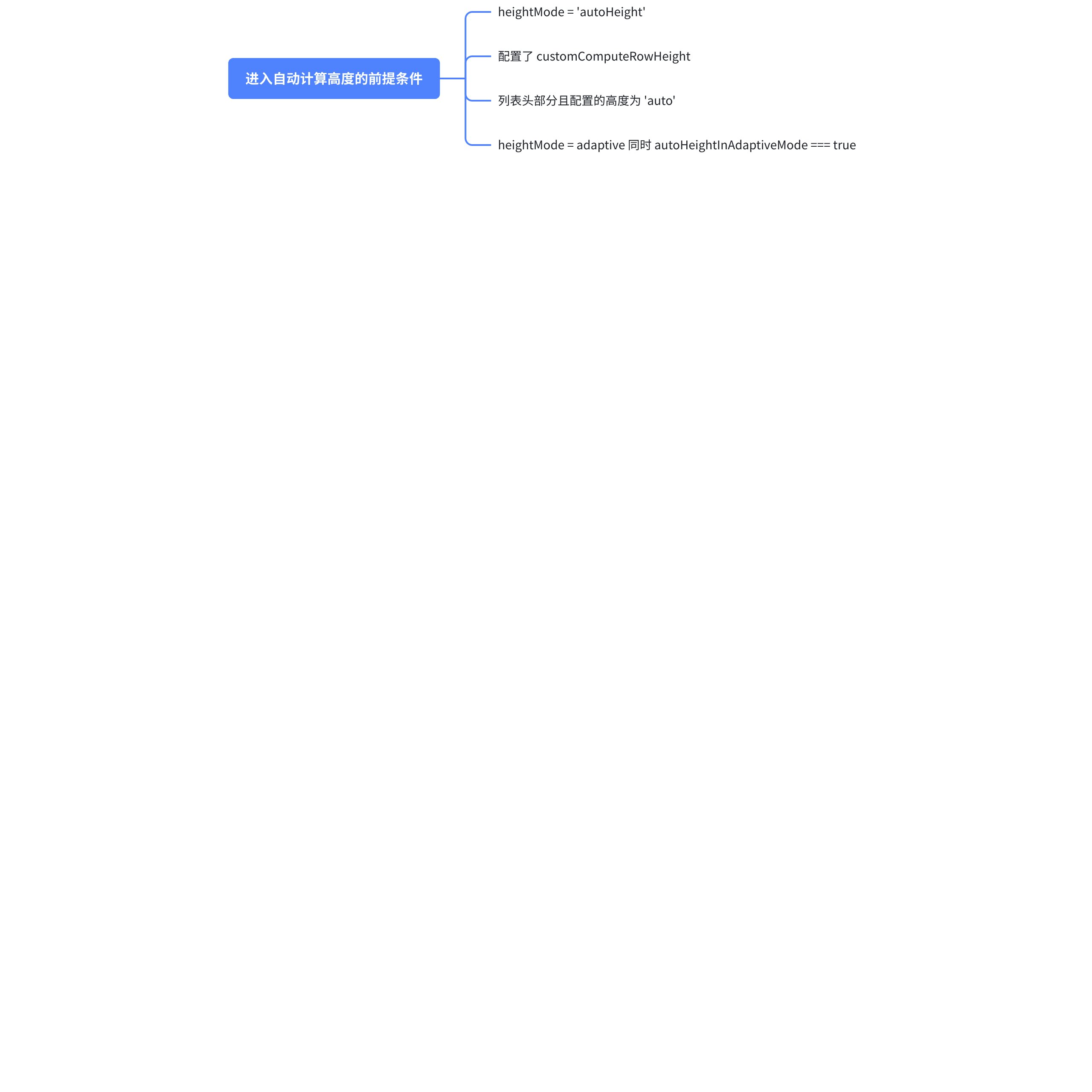
Pre-Update Check
To enter automatic line height calculation, one of the following conditions must be met:
body section update
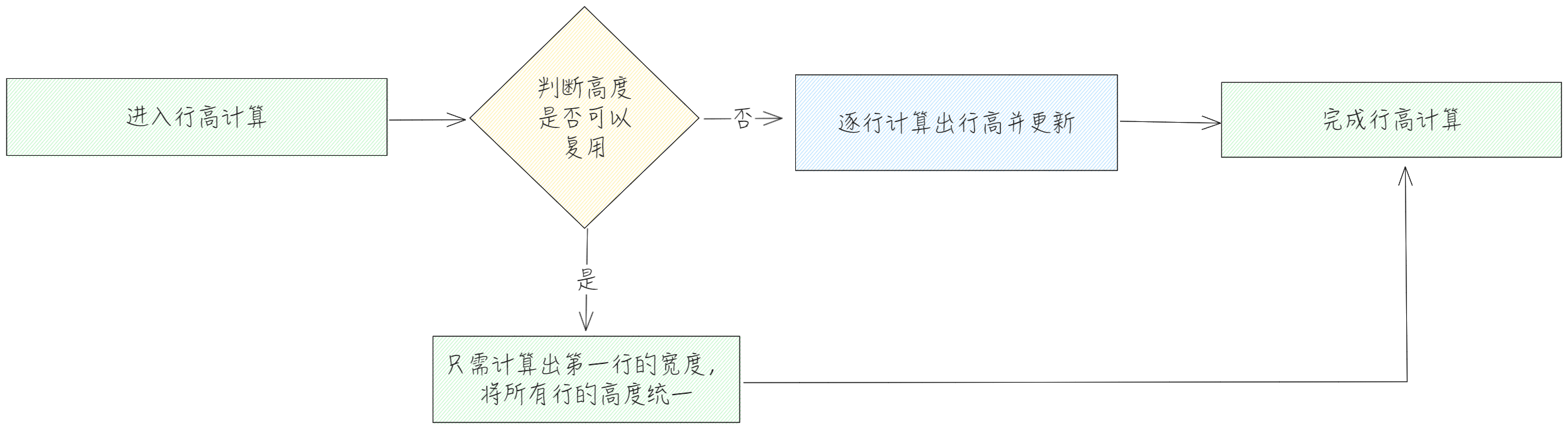
Regarding the update of the body section, for certain special cases, there will be some performance optimizations. Let's see how it is specifically operated:
Display in columns
// packages\vtable\src\scenegraph\layout\compute-row-height.ts
if (
  *// 以列展示 且符合只需要计算第一行其他行可复用行高的条条件*
  !(
    table.internalProps.transpose ||
    (table.isPivotTable() && !(table.internalProps.layoutMap as PivotHeaderLayoutMap).indicatorsAsCol)
  ) &&
  !(table.options as ListTableConstructorOptions).customComputeRowHeight &&
  checkFixedStyleAndNoWrap(table)
) {
  *// check fixed style and no wrap situation, fill all row width single compute*
  *// traspose table and row indicator pivot table cannot use single row height*
  const height = computeRowHeight(table.columnHeaderLevelCount, 0, table.colCount - 1, table);
  fillRowsHeight(
    height,
    table.columnHeaderLevelCount,
    table.rowCount - 1 - table.bottomFrozenRowCount,
    table,
    update ? newHeights : undefined
  );
  *//底部冻结的行行高需要单独计算*
  for (let row = table.rowCount - table.bottomFrozenRowCount; row <= rowEnd; row++) {
    const height = computeRowHeight(row, 0, table.colCount - 1, table);
    if (update) {
      newHeights[row] = Math.round(height);
    } else {
      table._setRowHeight(row, height);
    }
  }
}
Precondition check
Table row and column transposition is not enabled or it is not a pivot table \r
No custom line height calculation configured \r
checkFixedStyleAndNoWrap table columns and cell styles can be reused
Specific logic
Only calculate the first line in the body, reuse that height for other lines \r
The row height of the frozen bottom row needs to be calculated separately \r
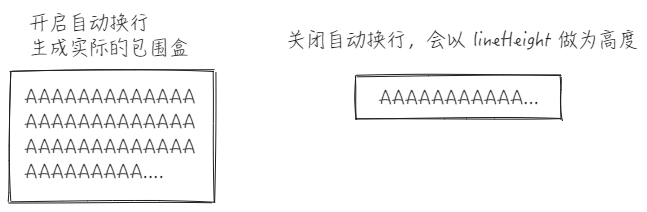
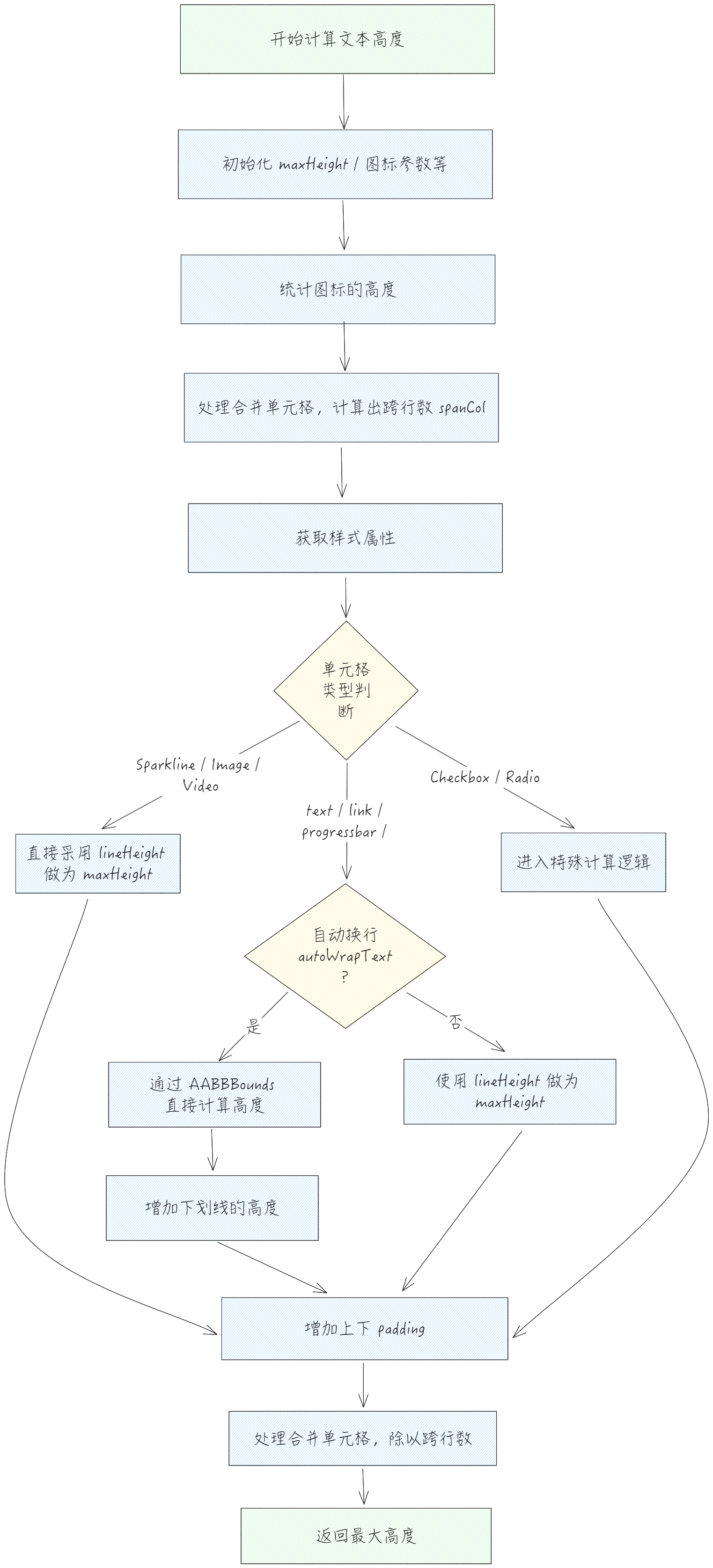
autoWrapText mainly affects the calculation of text height. In the case of automatic line wrapping, AABBBounds will be generated, and the width of the text will be passed in during generation. This allows the height of the text to be calculated directly through AABBBounds. When automatic line wrapping is not enabled, only lineHeight will be used as the text height.
computeTextHeight process
The overall calculation formula is \u0060(Math.max(maxHeight, iconHeight) \u002B padding[0] \u002B padding[2]) / spanRow;\u0060 \r
General Process
Update Again
Taking the resize of the scene tree as an example, the row height will only be recalculated when heightMode is adaptive or autoFillHeight is true. There are several situations here: \r
// packages\vtable\src\scenegraph\scenegraph.ts
resize() {
    // ...
    if (this.table.heightMode === 'adaptive') {
      if (this.table.internalProps._heightResizedRowMap.size === 0) {
        this.recalculateRowHeights();
      } else {
        this.dealHeightMode();
      }
    } else if (this.table.autoFillHeight) {
      this.dealHeightMode();
    }
}
When the column width is not adjusted, it is necessary to recalculate the row height. During the calculation, the scene tree elements will be updated based on the changed rows. \r
If the column width has been manually adjusted or autoFillHeight is enabled, it will enter dealHeightMode. \r
Because there is no need to calculate the line height in standard mode, the cache can be used directly during resize. Therefore, only in adaptive or autoFillHeight mode will the height of each line be readjusted and allocated based on the cached height.