


Gantt Task Bar Layout Mode
In Gantt, the layout mode of the task bar determines the display effect of the task bar. It can be set through the tasksShowMode configuration item, and Gantt provides the following six modes:
Tasks_Separate: Each task node is displayed in a separate line, with the parent task occupying one line and the sub-tasks occupying one line respectively. This is the default display effect!Sub_Tasks_Separate: The parent task node is not displayed, and all sub-task nodes are displayed in a separate line. (Only one level of sub-tasks are supported.)Sub_Tasks_Inline: The parent task node is not displayed, and all sub-task nodes are displayed on the same line. (Only one level of sub-tasks are supported.)Sub_Tasks_Arrange: The parent task node is not displayed, and all sub-task nodes will maintain the order of the data inrecords, and ensure that the nodes are not overlapped. (Only one level of sub-tasks are supported.)Sub_Tasks_Compact: The parent task node is not displayed, and all sub-task nodes will be arranged according to thestartproperty of the date, and ensure that the nodes are displayed in a compact manner without overlapping. (Only one level of sub-tasks are supported.)Project_Sub_Tasks_Inline: For tasks set with thetypeproperty asproject, the display mode will beSub_Tasks_Inline(non-expanded state). Other tasks with a type other thanprojectwill still be displayed in theTasks_Separatemode. (The level of sub-tasks is not limited.)
Configuration Method
The configuration method of the Gantt task bar layout mode is as follows:
import * as VTableGantt from '@visactor/vtable-gantt';
const options={
    ...
    tasksShowMode: VTableGantt.TYPES.TasksShowMode.Sub_Tasks_Compact,
    ...
}
Example Display
The following shows the effect of different task bar layout modes, using the following data as an example:
const options={
  ...
  records:[
    {
      id: 0,
      name: 'Planning',
      start: '2024-11-15',
      end: '2024-11-21',
      children: [
        {
          id: 1,
          name: 'Michael Smith',
          start: '2024-11-15',
          end: '2024-11-17',
          avatar: 'https://lf9-dp-fe-cms-tos.byteorg.com/obj/bit-cloud/VTable/custom-render/wolf.jpg'
        },
        {
          id: 2,
          name: 'Emily',
          start: '2024-11-17',
          end: '2024-11-18',
          avatar: 'https://lf9-dp-fe-cms-tos.byteorg.com/obj/bit-cloud/VTable/custom-render/bear.jpg'
        },
        {
          id: 3,
          name: 'Rramily',
          start: '2024-11-19',
          end: '2024-11-20',
          avatar: 'https://lf9-dp-fe-cms-tos.byteorg.com/obj/bit-cloud/VTable/custom-render/bear.jpg'
        },
        {
          id: 4,
          name: 'Lichael Join',
          start: '2024-11-18',
          end: '2024-11-19',
          avatar: 'https://lf9-dp-fe-cms-tos.byteorg.com/obj/bit-cloud/VTable/custom-render/wolf.jpg'
        }
      ]
    },
    ...
  ]
}
Tasks_Separate
In this mode:
- The parent task occupies one line
- Each sub-task occupies one line
- Suitable for scenarios that need a clear display of the hierarchical structure of each task
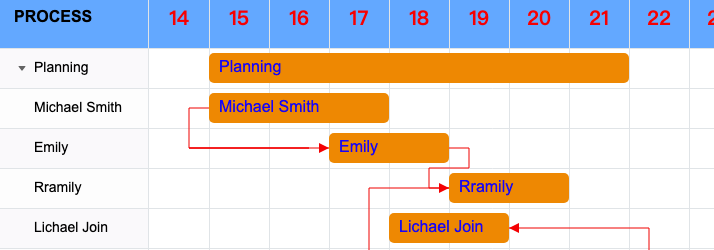
The display effect of the above data is: the parent task id: 0 occupies one line, and the sub-tasks id: 1~4 each occupy one line. The layout effect is as follows:
Sub_Tasks_Separate
这种模式下:
- 父任务节点不显示
- 每个子任务分别占用一行
- 适合只关注具体子任务情况而非分组的场景
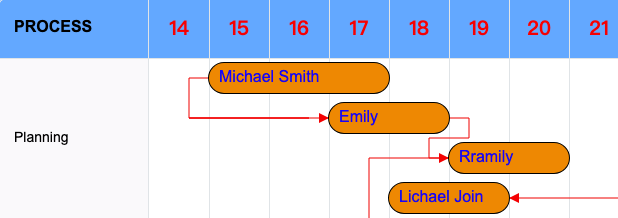
The display effect of the above data is: the parent task id: 0 only shows the task name in the first column, and the sub-tasks id: 1~4 each occupy one line (note that there is no row split line here). The layout effect is as follows:
Sub_Tasks_Inline
In this mode:
- The parent task node is not displayed
- All sub-task nodes are displayed on the same line
- Suitable for scenarios that need a compact display of related sub-tasks
The display effect of the above data is: the parent task id: 0 only shows the task name in the first column, and the sub-tasks id: 1~4 are displayed on the same line. The layout effect is as follows:

Sub_Tasks_Arrange
Sub_Tasks_Arrange show mode will not display the parent task node, and all sub-task nodes will maintain the order of the data in records, and ensure that the nodes are not overlapped.
In this mode:
- The parent task node is not displayed
- The sub-task nodes will be arranged in the order of the data in
records, and the nodes will not overlap. - Suitable for scenarios that need to maintain the original data order
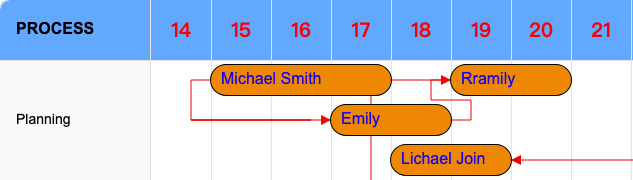
The display effect of the above data is: the parent task id: 0 only shows the task name in the first column, and the sub-tasks id: 1~4 will be arranged in the order of the records, and the nodes will not overlap. The layout effect is as follows:
Sub_Tasks_Compact
Sub_Tasks_Compact show mode will not display the parent task node, and all sub-task nodes will be arranged according to the start property of the date, and ensure that the nodes are displayed in a compact manner without overlapping.
In this mode:
- The parent task node is not displayed
- The sub-task nodes will be arranged according to the
startproperty of the date, and the nodes will be displayed in a compact manner without overlapping. - Suitable for scenarios that need to maximize the use of space
The display effect of the above data is: the parent task id: 0 only shows the task name in the first column, and the sub-tasks id: 1~4 will be arranged according to the start property of the date, and the nodes will be displayed in a compact manner without overlapping. The layout effect is as follows:
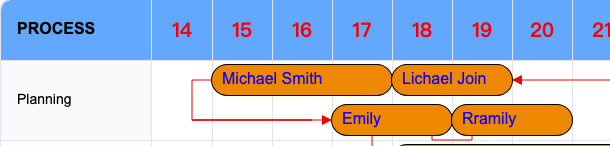
Note: The difference between Sub_Tasks_Compact and Sub_Tasks_Arrange is that Arrange will not change the order of the data in records, but the layout is not the most compact. On the other hand, Compact will change the order of the data in records, but the layout is the most compact, and the layout will be triggered to be re-arranged when the task position is moved.
Project_Sub_Tasks_Inline
In this mode:
- Only project type tasks are specially processed, and other tasks are displayed normally
- When the project task is folded, the sub-tasks will be displayed inline on the project task line
- When the project task is expanded, the sub-tasks will be displayed in the regular tree structure
- The
projectSubTasksExpandableconfiguration item controls whether to support the expansion/folding function - Suitable for scenarios that need to distinguish between project tasks and normal tasks
The display effect of the above data is: when the project task id: 0 is in the folded state, the sub-tasks id: 1~4 will be displayed inline on the project task line, and when the project task id: 0 is in the expanded state, the sub-tasks id: 1~4 will be displayed in the regular tree structure. The layout effect is as follows:
