It is not only a fully functional graph visualization library, but also an explorer of data relationships.
!!!###!!!title=sheet menu——VisActor/VTable tutorial documents!!!###!!!!!!###!!!description=VTable-Sheet provides rich menu functionality, including main menus and right-click context menus, helping users quickly execute common operations. This chapter explains how to configure and use VTable-Sheet's menu features.!!!###!!!
Menu Functionality
VTable-Sheet provides rich menu functionality, including main menus and right-click context menus, helping users quickly execute common operations. This chapter explains how to configure and use VTable-Sheet's menu features.
Main Menu Configuration
VTable-Sheet supports displaying a main menu at the top, which can be customized through configuration options:
const sheetInstance = new VTableSheet(document.getElementById('container'), {
  // Other configuration options...
  mainMenu: {
    show: true,  // Display the main menu
    items: [
          {
            name: 'Import',
            menuKey: MenuKey.IMPORT,  // Use predefined menu key value
            description: 'Import data'  // Tooltip when hovering
          },
          {
            name: 'Export',
            items: [  // Can nest multiple levels of menus
              {
                name: 'Export CSV',
                menuKey: MenuKey.EXPORT_CURRENT_SHEET_CSV,
                description: 'Export current sheet as CSV format'
              },
              {
                name: 'Export Excel',
                menuKey: MenuKey.EXPORT_CURRENT_SHEET_XLSX,
                description: 'Export current sheet as Excel format'
              }
            ]
          }
    ]
  }
});
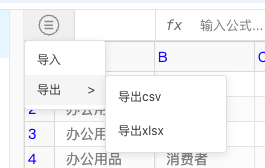
With the above configuration, the main menu looks like this:
From the mainMenu configuration structure above, you can see that it supports multi-level menus and nested submenus. Its specific definition is as follows:
  /** Main menu */
  mainMenu?: {
    /** Whether to display */
    show?: boolean;
    /** Menu items */
    items?: MainMenuItem[];
  };
Menu item configuration options:
export interface MainMenuItem {
  /** Menu item name */
  name: string;
  /** Menu item unique identifier, if configured with a value included in _menuKey, clicking the menu item will match built-in logic (if onClick is also configured, onClick takes precedence) */
  menuKey?: MainMenuItemKey;
  /** Menu item description */
  description?: string;
  /** Menu item click callback */
  onClick?: () => void;
  /** Submenu items */
  items?: MainMenuItem[];
}

export enum MainMenuItemKey {
  /** Requires plugin support, please configure ExcelImportPlugin in plugins */
  IMPORT = 'import',
  /** Requires plugin support, please configure TableExportPlugin in plugins */
  EXPORT_CURRENT_SHEET_CSV = 'export-current-sheet-csv',
  /** Requires plugin support, please configure TableExportPlugin in plugins */
  EXPORT_CURRENT_SHEET_XLSX = 'export-current-sheet-xlsx'
}
As you can see, the menuKey optional type definition MainMenuItemKey currently supports three values, and when a menu item is clicked, it will match built-in logic. These key values involve import and export logic, and require simultaneously configuring VTablePluginModules to explicitly configure the required ExcelImportPlugin and TableExportPlugin plugins for the functionality to work properly.
menuKey is an optional parameter and can be omitted. If not configured, please use the onClick property to handle menu item click events.
Context Menu (Right-click Menu)
VTable-Sheet also supports right-click context menus. This capability is implemented based on the ContextMenuPlugin plugin in @visactor/vtable-plugins. For plugin tutorials, please refer to ContextMenuPlugin.
It's important to emphasize that if you want to modify the default menu items, you can define ContextMenuPlugin plugin configuration options through VTablePluginModules to modify the default menu items.
Through these menu features, VTable-Sheet can provide a rich user interaction experience, helping users efficiently operate and manage table data.