It is not only a fully functional graph visualization library, but also an explorer of data relationships.
!!!###!!!title=filter——VisActor/VTable tutorial documents!!!###!!!!!!###!!!description=VTable-Sheet provides powerful data filtering capabilities to help users quickly find the data they need. The filtering functionality supports multiple filtering modes, including filtering by value and by condition.The filtering functionality is implemented using VTable's filter-plugin, which is included by default in vtable-sheet. For a tutorial on this plugin, please refer to: [filter-plugin](../plugin/filter).If you want to modify the plugin configuration, please use the vtablePluginModules configuration option. For details, refer to: [vtablePluginModules](../sheet/plugin).!!!###!!!
Data Filtering
VTable-Sheet provides powerful data filtering capabilities to help users quickly find the data they need. The filtering functionality supports multiple filtering modes, including filtering by value and by condition.
The filtering functionality is implemented using VTable's filter-plugin, which is included by default in vtable-sheet. For a tutorial on this plugin, please refer to: filter-plugin.
If you want to modify the plugin configuration, please use the vtablePluginModules configuration option. For details, refer to: vtablePluginModules.
Enabling Filtering
Global Enabling
You can enable filtering in the worksheet configuration:
const sheetInstance = new VTableSheet(document.getElementById('container'), {
  sheets: [
    {
      sheetKey: 'sheet1',
      sheetTitle: 'Data Table',
      filter: true,  // Enable filtering for the entire sheet
      // ...other configurations
    }
  ]
});
Enabling for Specific Columns
You can also enable filtering only for specific columns:
const sheetInstance = new VTableSheet(document.getElementById('container'), {
  sheets: [
    {
      sheetKey: 'sheet1',
      sheetTitle: 'Data Table',
      columns: [
        { title: 'Name', filter: true },  // Enable filtering only for the Name column
        { title: 'Age' },                // No filtering
        { title: 'Department', filter: true }   // Enable filtering only for the Department column
      ],
      // ...other configurations
    }
  ]
});
Custom Filter Modes
By default, the filter panel supports both filtering by value and by condition.
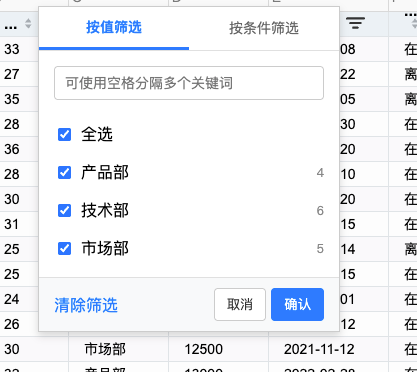
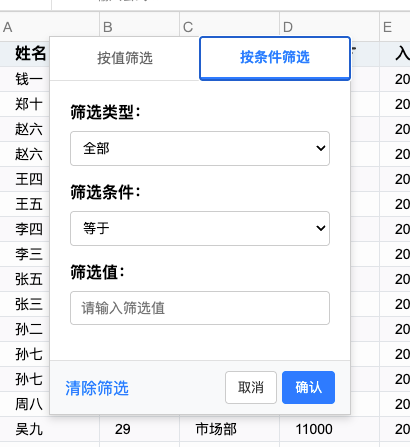
After enabling filtering, header cells will display a filter icon. Clicking the icon will open the filter menu, where users can choose filtering methods.
Value List Filtering
Value list filtering displays all unique values in the column, and users can filter data by checking values:
Condition Filtering
Condition filtering allows users to set more complex filter conditions, such as "greater than", "contains", etc.:
Filter Event Listening
TODO
You can listen for filter state changes:
// Listen for filter change events
sheetInstance.on('filterChange', (evt) => {
  console.log('Filter changed:', evt);
  console.log('Filtered column:', evt.columnKey);
  console.log('Filter condition:', evt.filter);
});

// Listen for filter reset events
sheetInstance.on('filterReset', () => {
  console.log('All filters have been reset');
});
Complete Filtering Example
Here is a complete data filtering example:
With these filtering features, users can quickly filter out the data they need, improving the efficiency of data analysis and processing.