


VTable2 Formula Functionality
1. Feature Overview
VTable2 includes a powerful formula calculation engine that supports Excel-like formula functionality, allowing users to perform data calculations and analysis directly in the table. Key features include:
- Support for over 40 built-in functions such as SUM, AVERAGE, IF, etc.
- Smart formula editor with auto-complete and syntax highlighting
- Support for cell references and range selection
- Multi-sheet references and calculations
- Formula dependency tracking and automatic recalculation
- Detection and prevention of circular references
2. Supported Formula Functions
VTable2 supports functions including but not limited to:
Mathematical Functions
- SUM: Calculate sum, e.g., =SUM(A1:A10)
- AVERAGE: Calculate average, e.g., =AVERAGE(B2:B8)
- MAX/MIN: Get maximum/minimum value, e.g., =MAX(C1:C20)
- ROUND: Round to specified decimal places, e.g., =ROUND(A1, 2)
- ABS: Absolute value, e.g., =ABS(A1)
Logical Functions
- IF: Conditional logic, e.g., =IF(A1>10, "High", "Low")
- AND/OR: Logical AND/OR, e.g., =AND(A1>5, A1<10)
- NOT: Logical NOT, e.g., =NOT(A1=0)
Text Functions
- CONCATENATE: Text concatenation, e.g., =CONCATENATE(A1, " ", B1)
- LEFT/RIGHT: Extract characters from left/right, e.g., =LEFT(A1, 3)
- LEN: Calculate text length, e.g., =LEN(A1)
Date Functions
- TODAY: Get current date, e.g., =TODAY()
- NOW: Get current date and time, e.g., =NOW()
- YEAR/MONTH/DAY: Extract year/month/day, e.g., =YEAR(A1)
Lookup Functions
- VLOOKUP: Vertical lookup, e.g., =VLOOKUP(A1, B1:C10, 2, FALSE)
- INDEX/MATCH: Index match, e.g., =INDEX(A1:C10, MATCH(D1, A1:A10, 0), 2)
3. Formula Editor
VTable2 provides a full-featured formula editor to help users efficiently input and edit formulas:
- Smart Suggestions: Automatically suggests available functions after typing "="
- Auto-complete: Displays matching functions when typing the first few letters of a function name
- Parameter Hints: Shows parameter descriptions and usage when entering functions
- Error Checking: Detects bracket matching, syntax errors, etc.
- Range Selection: Allows direct clicking to select cells or dragging to select ranges while entering formulas
- Range Highlighting: Uses color differentiation for formula range selection
4. Implementation Principles
VTable2's formula system is primarily implemented using the following components:
Core Calculation Engine
VTableSheet has independently developed the FormulaEngine module as the core computing engine
- Supports most common Excel functions
- Builds dependency graphs to track reference relationships between cells
- Efficient incremental calculation, only recalculating affected cells
Formula Management Architecture
The formula system consists of the following main components:
- FormulaManager: Core management class responsible for interacting with FormulaEngine, handling formula calculations and cell state management
- FormulaEditor: Handles formula input and editing interface
- FormulaAutocomplete: Provides intelligent function and cell reference suggestions
- FormulaRangeSelector: Handles cell and range selection logic
- CellHighlightManager: Manages highlighting of formula-related cells
Formula Parsing and Calculation Process
- User inputs a formula starting with "="
- Formula editor parses the input content, providing function suggestions and parameter hints
- After the formula is submitted, FormulaManager passes it to FormulaEngine
- FormulaEngine parses the formula, builds a dependency graph, and performs calculations
- Results are returned and displayed in the cell
- When dependent cells are updated, the system automatically recalculates affected formulas (TODO)
5. Usage Examples
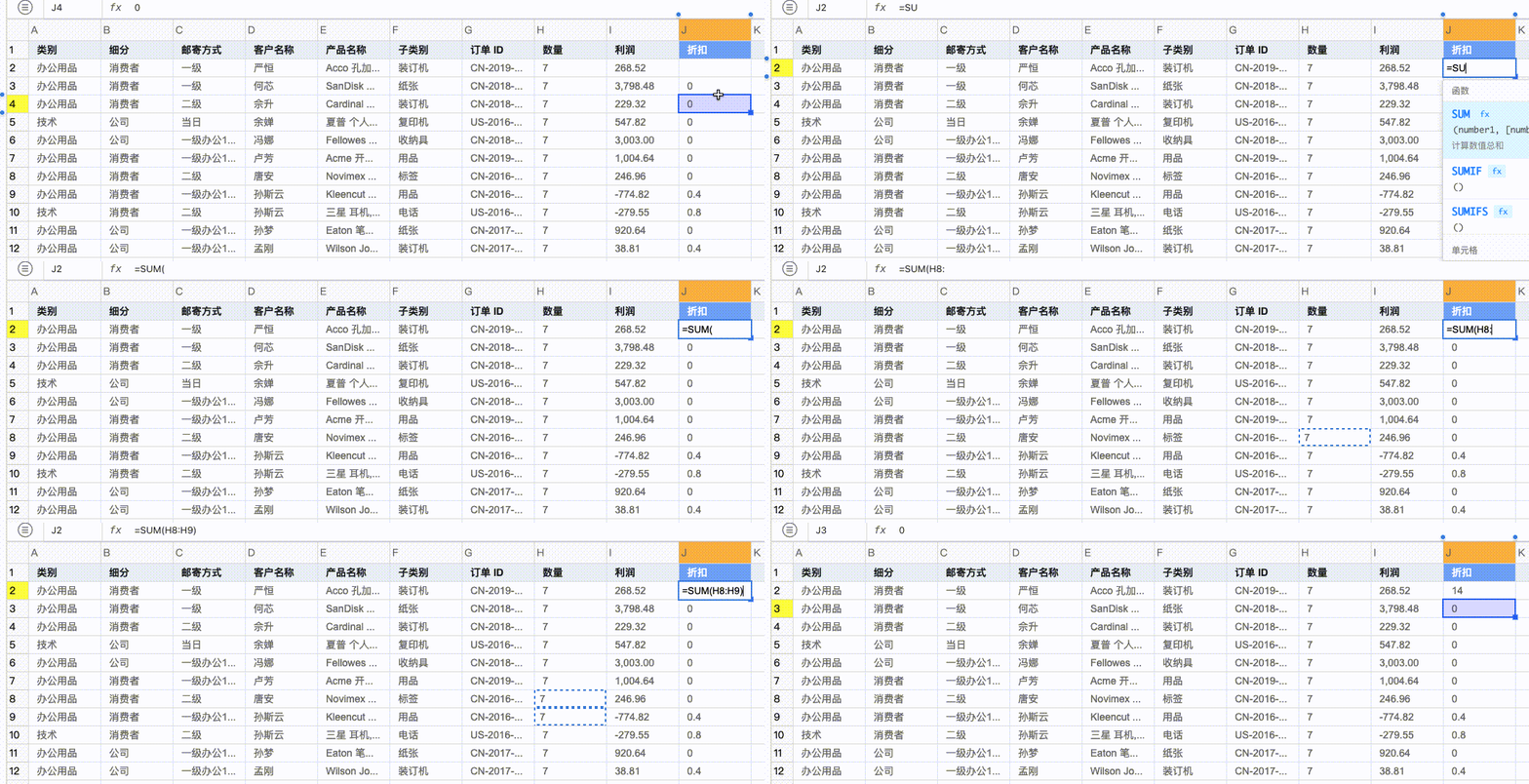
Basic Formula Input
- Click on a cell and type "=" to start a formula
- Enter a function name or directly reference cells
- Press Enter to confirm the input
Examples:
=SUM(A1:A10)     // Calculate the sum of A1 to A10
=A1+B1*C1        // Basic arithmetic
=IF(D1>100, "Large", "Small")  // Conditional logic
Manual formula input:
Cell References and Range Selection
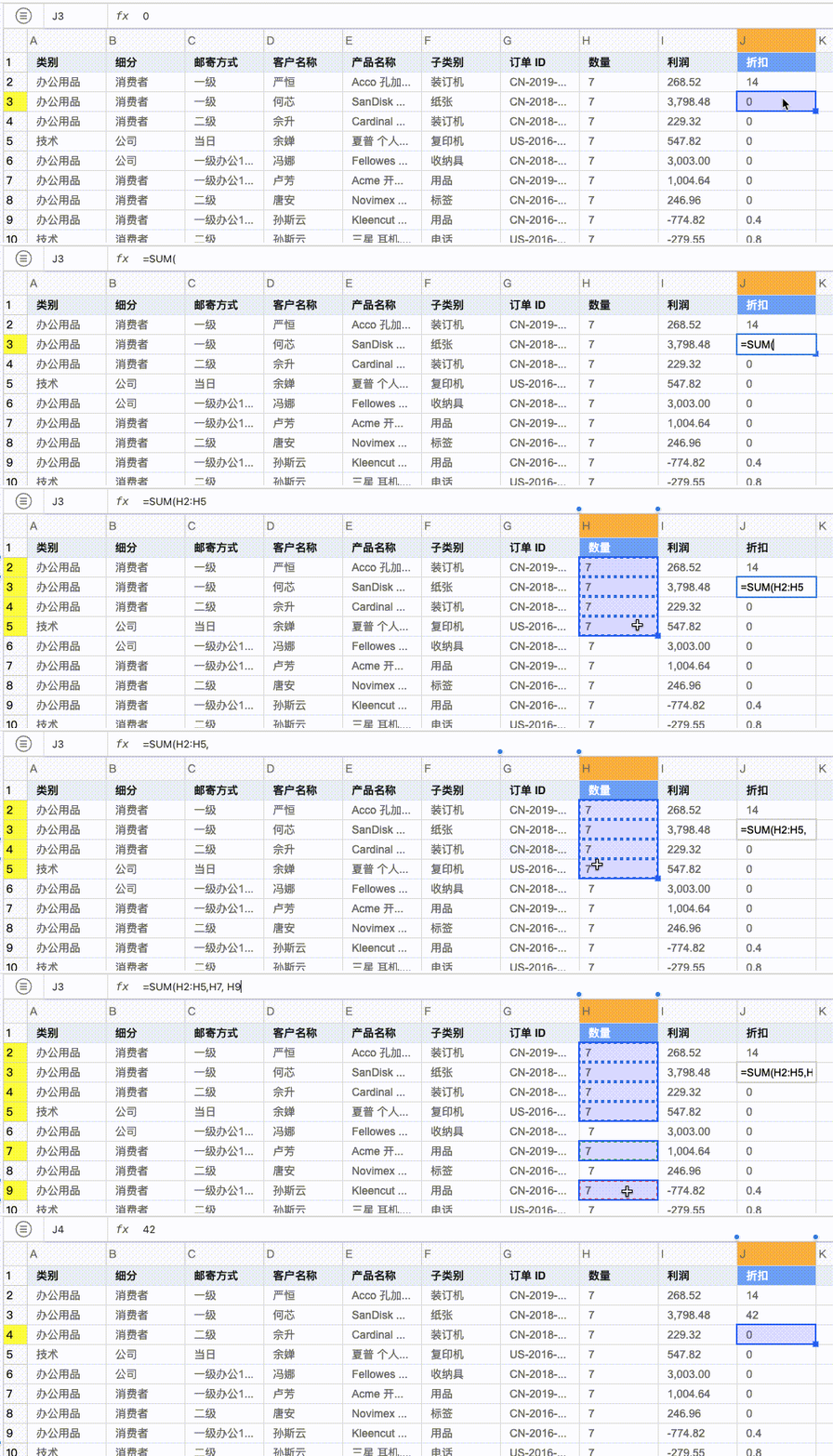
- While entering a formula, clicking on other cells automatically inserts their references
- Dragging allows selection of a range
- Supports absolute references ($A$1) and relative references (A1)
Cell reference input and range selection:
Formula Copying
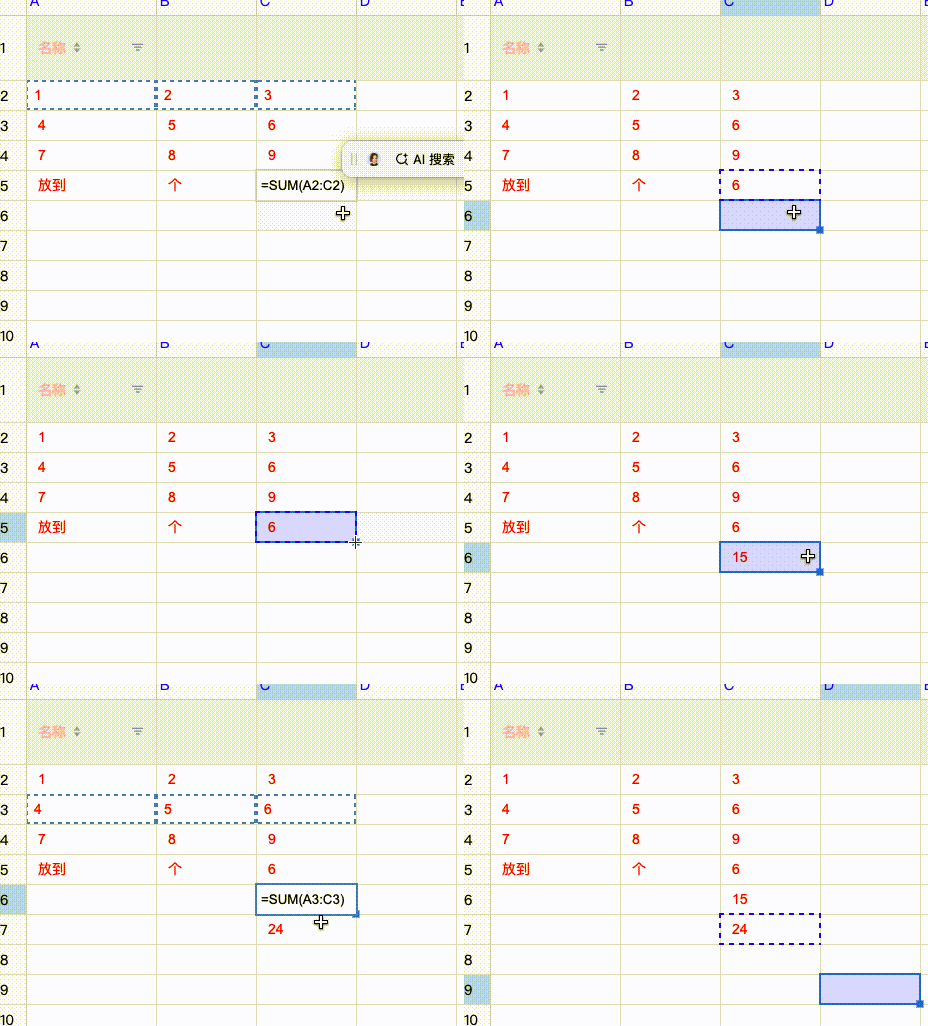
When copying cells containing formulas, references are automatically adjusted:
- Relative references adjust according to position offset
- Absolute references remain unchanged
Formula Auto Filling
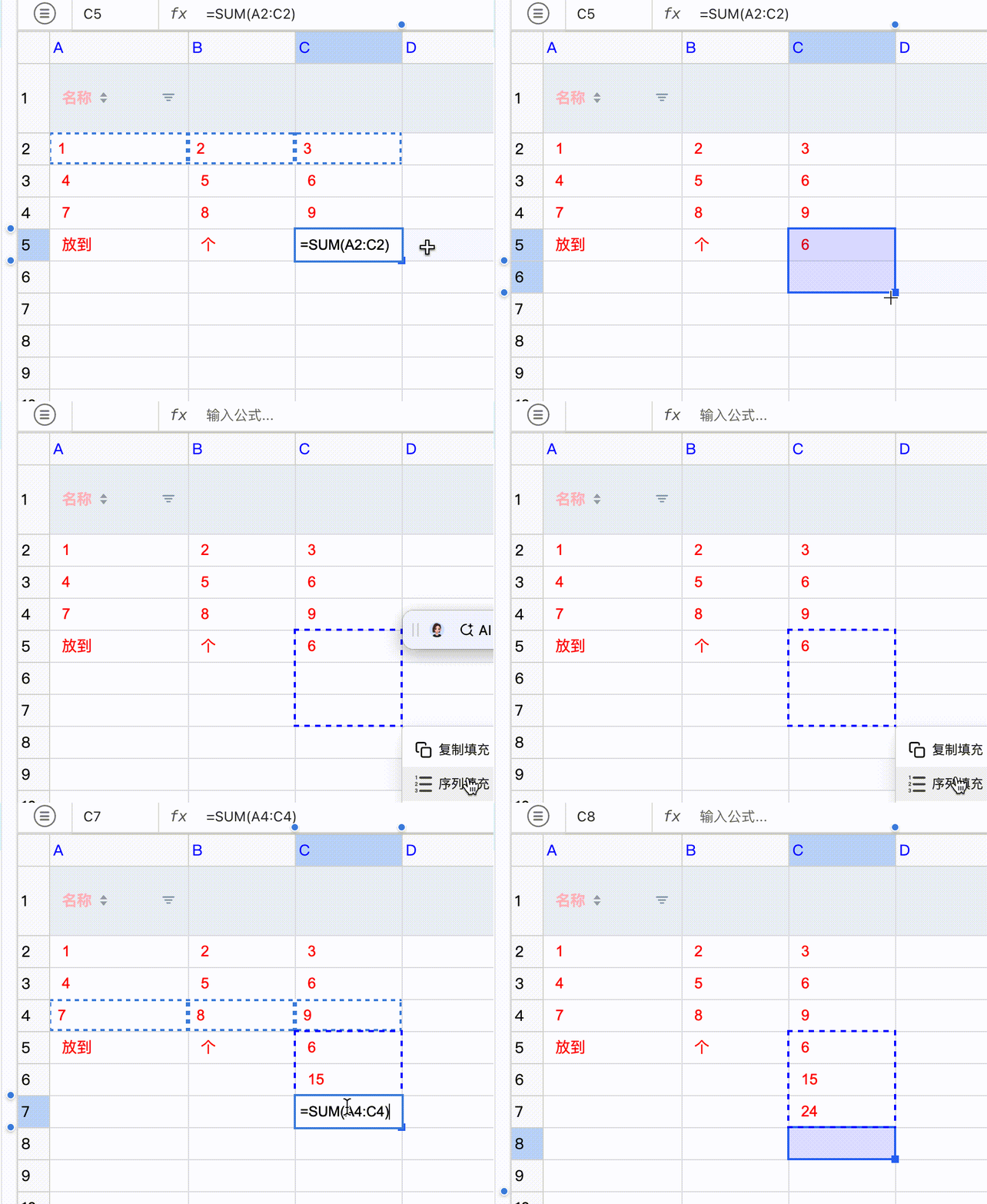
When a region is selected and contains formulas, the formula is automatically filled using the fill handle.
6. Advanced Features
Multi-Sheet Support (TODO)
Support for referencing cells in other worksheets in formulas:
=Sheet2!A1       // Reference cell A1 in Sheet2
=SUM(Sheet3!B2:B10)  // Calculate the sum of a range in another worksheet
Formula Dependency Tracking (TODO)
The system can track dependencies between formulas:
- Automatic updates: When dependent cells change, related formulas are automatically recalculated
- Circular reference detection: Automatically detects and warns about circular reference issues
Error Handling
Supports common formula error handling:
- #DIV/0!: Division by zero error
- #VALUE!: Value type error
- #REF!: Reference error
- #NAME?: Name error
- #NUM!: Numeric error
7. Notes
- Formulas must start with the "=" symbol
- Function names are case-insensitive
- Supports nested functions, such as
=IF(SUM(A1:A5)>100, MAX(B1:B5), MIN(C1:C5)) - Cell addresses use A1 format, such as A1, B2, C3, etc.
- Range references use a colon separator, such as A1:B10
- Arithmetic expressions are evaluated as numeric calculations only. Cell values or function results used with
+,-,*, or/must be convertible to finite numbers. Non-numeric content returns a formula error and is never executed as script or code.
The formula capabilities are not fully complete The formula linkage processing, formula and sorting, and dragging rows and columns have conflicts If other cell editors are manually configured, the formula capabilities will be disabled. The formula capabilities will be gradually improved in future updates. Welcome to participate in the contribution of the formula capabilities.