It is not only a fully functional graph visualization library, but also an explorer of data relationships.
!!!###!!!title=VChart Animation Tutorial——VisActor/VChart tutorial documents!!!###!!!!!!###!!!description=In this tutorial, we will go into detail on how to use animation features in VChart.Animation is a non-critical feature in VChart, which can make the charts more vivid and easy to understand. In the following sections, we will learn about the types of animations and related configurations in VChart:- Entrance animation- Update animation- Exit animation!!!###!!!
VChart Animation Tutorial
In this tutorial, we will go into detail on how to use animation features in VChart.
Animation is a non-critical feature in VChart, which can make the charts more vivid and easy to understand. In the following sections, we will learn about the types of animations and related configurations in VChart:
Entrance animation
Update animation
Exit animation
Entrance Animation Configuration
The entrance animation refers to the animation effect when the chart is created. We can use the animationAppear configuration to set the entrance animation.
The type of animationAppear can be either a boolean value or an object. When set to false, the entrance animation will be turned off. When set as an object, the characteristics of the entrance animation can be set. Here's an example configuration:
The attribute animation of chart elements when updating chart data is called an update animation. In VChart, users can manually call the updateData interface to trigger data updates. Also, clicking the legend will update the chart data. The update animation is divided into three categories: new element animation, element update animation, and exit element animation.
Usually, you don't need to consider how to control these three types of update animations, because VChart will recognize the relationship between new data and previous data when updating data, and perform update animations correctly.
Here's an example of a pie chart data update, where you can randomly update the pie chart's data length and value:
New Element Animation
The new element animation refers to the animation effect of the new element added when the chart data is updated. We can use the animationEnter configuration to set the new element animation.
animationEnter can be either a boolean value or an object. When set to false, it will disable the new element animation. When set as an object, the characteristics of the new element animation can be set. Here's an example configuration:
The element update animation refers to the update animation effect of the existing element when the chart data is updated. We can use the animationUpdate configuration to set the element update animation.
animationUpdate can be either a boolean value or an object. When set to false, it will disable the element update animation. When set as an object, the characteristics of the element update animation can be set. Here's an example configuration:
{
  "animationUpdate": {
    "duration": 500
  }
}
Exit Element Animation
The exit element animation refers to the animation effect of the element corresponding to the deleted data when the chart data is updated. We can use the animationExit configuration to set the exit element animation.
animationExit can be either a boolean value or an object. When set to false, it will disable the exit element animation. When set as an object, the characteristics of the exit element animation can be set. Here's an example configuration:
{
  "animationExit": {
    "duration": 500
  }
}
Chart Exit Animation
In some scenarios, we may need to remove the chart. At that time, we can set the exit animation for the chart so that there is a smooth transition animation effect before the chart is removed. We can use the animationDisappear configuration to set the chart exit animation.
animationDisappear can be either a boolean value or an object. When set to false, the chart exit animation will be turned off. When set as an object, the characteristics of the chart exit animation can be set. Here's an example configuration:
{
  "animationDisappear": {
    "duration": 1000
  }
}
Normal Animation
When chart elements are not in the aforementioned animation states, they enter the normal state (animationNormal). In this state, you can perform some carousel animations or create unique non-looping entrance/new element effects.
Global Morphing Animation
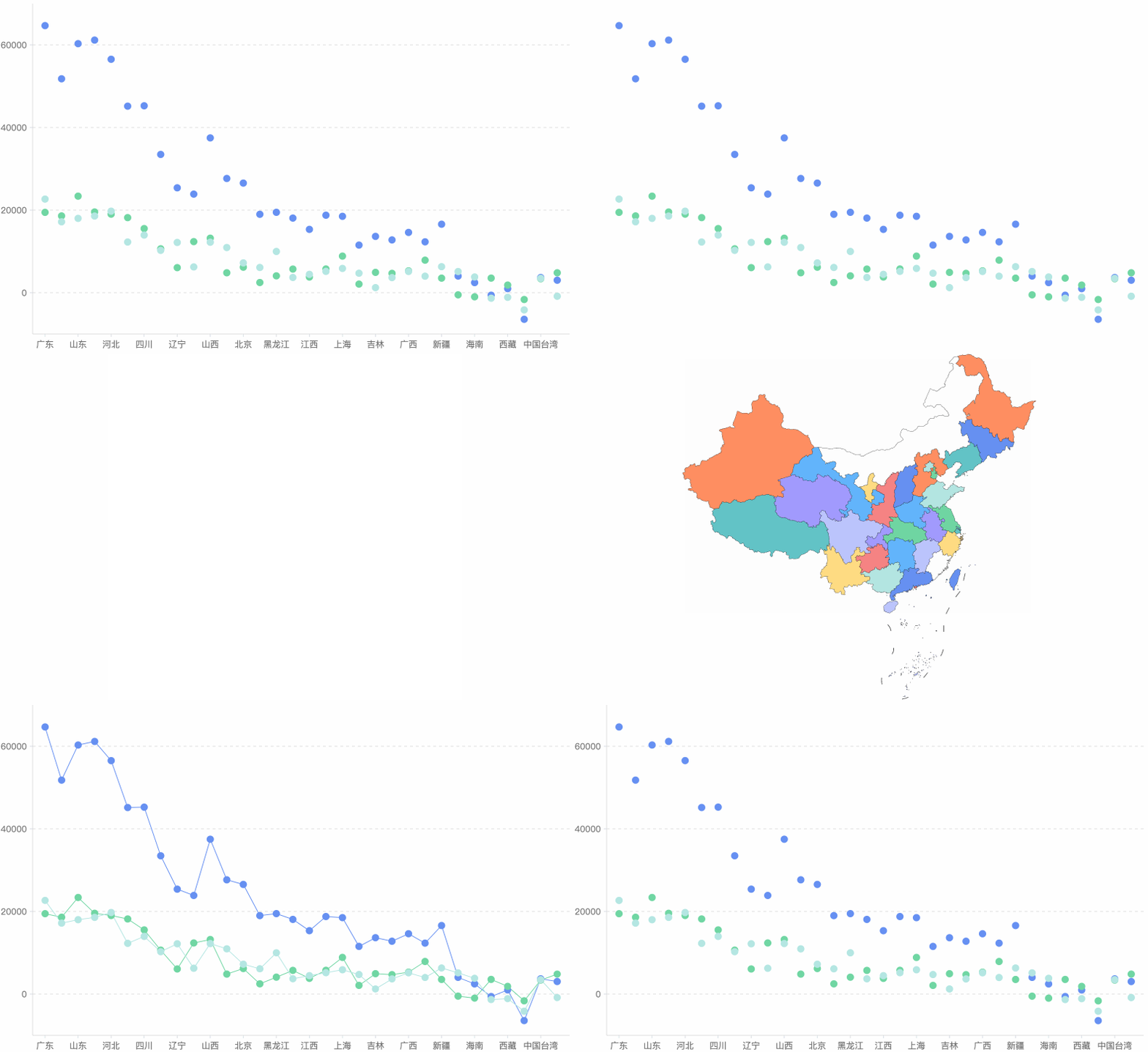
VChart provides morphing animations for related series switches. When you update the chart configuration through updateSpec, VChart checks whether the two related series of the new and old charts meet the conditions for morphing animation and then performs one-to-one, one-to-many, or many-to-one dynamic transitions between shapes.
Global morphing animations allow users to have a better visual experience when the displayed chart type changes, avoiding the feeling of sudden changes, as visual comfort should be an important factor we should consider in the process of displaying and analyzing data.
One-to-One Animation
A one-to-one animation is the transition animation between two different shapes. For example, in the following example, the global animation when switching between the pie chart and the bar chart is shown:
One-to-Many Animation
A one-to-many animation is the transition animation from one graphical element to multiple graphical elements. For example, in the following example, the global animation when switching between the bar chart and the scatter plot is shown. The animation where a large bar is split into multiple scatter points is a one-to-many animation.
Many-to-One Animation
A many-to-one animation is the transition from multiple graphical elements to one element. For example, in the above example, we can merge multiple points of the scatter plot series into a large bar.
Similar global morphing animations can be achieved in various series switches:
Turn Off Animation
If you want to turn off the animation, you can directly configure spec.animation: false, or set it when creating a chart instance:
That's all for the animation types in VChart. By configuring entrance, update, and exit animations, you can make your charts more vivid and easier to understand. We hope this tutorial has been helpful! Have fun using VChart!